

To activate your school account, first, you need to change your password. To change your password requires a desktop browser. If you want to change your password using a mobile device, please follow the instructions listed below:
Please open this link using Safari to change password.
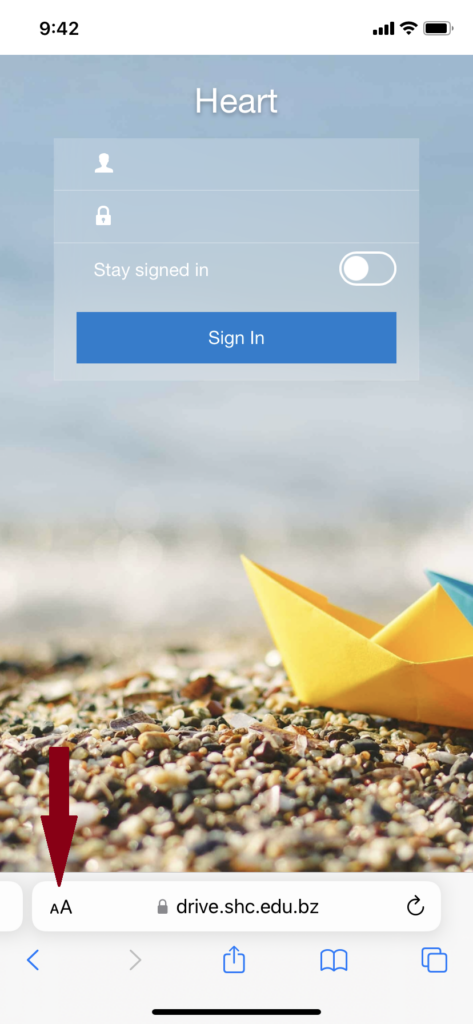
After opening the link above, go to bottom left of your screen where you will see “aA” icon, it opens the website view menu.
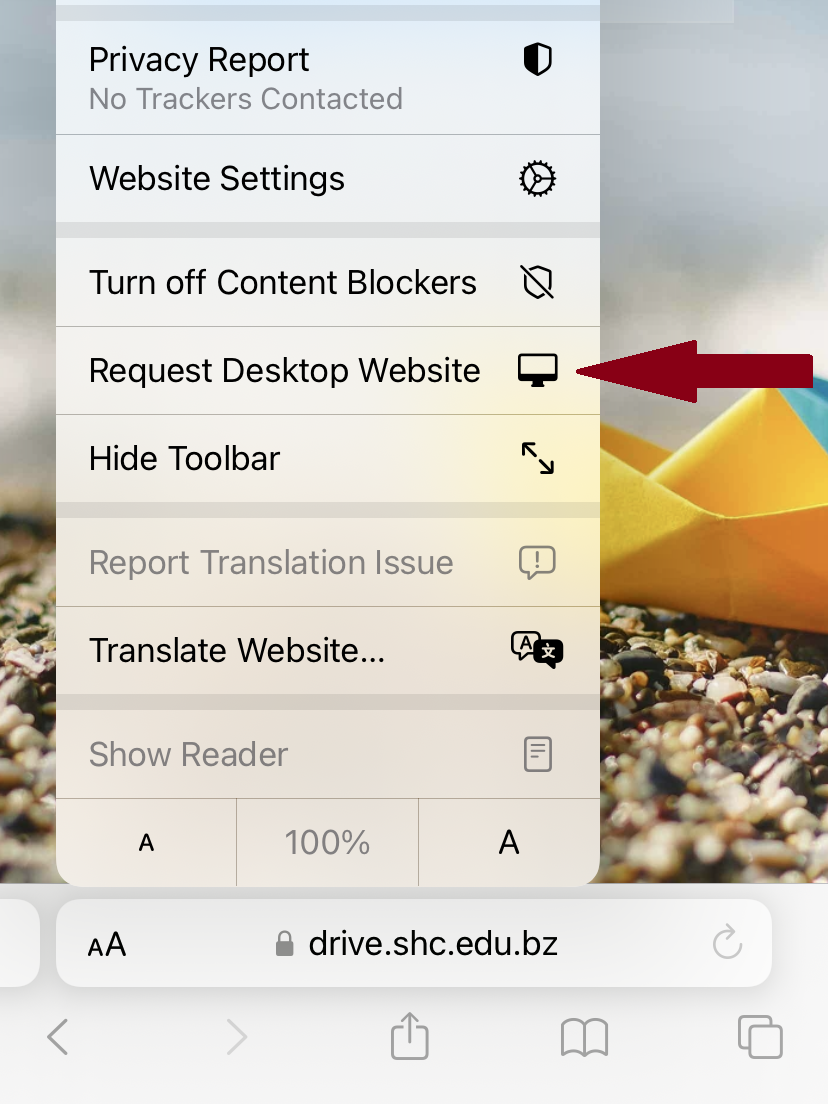
From the available options, choose the “Request Desktop Website” option.
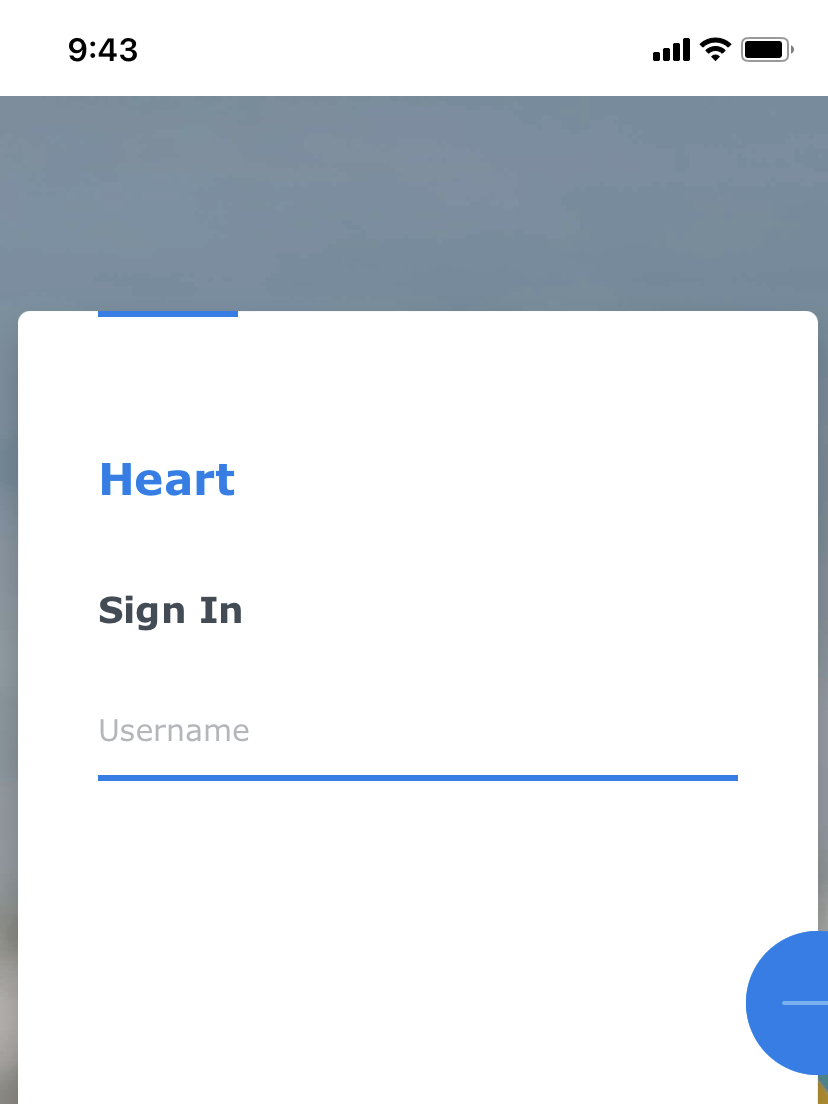
Step 4:
Website opens in Desktop Mode, now you can change your password.
Please open this link using Chrome to change password.
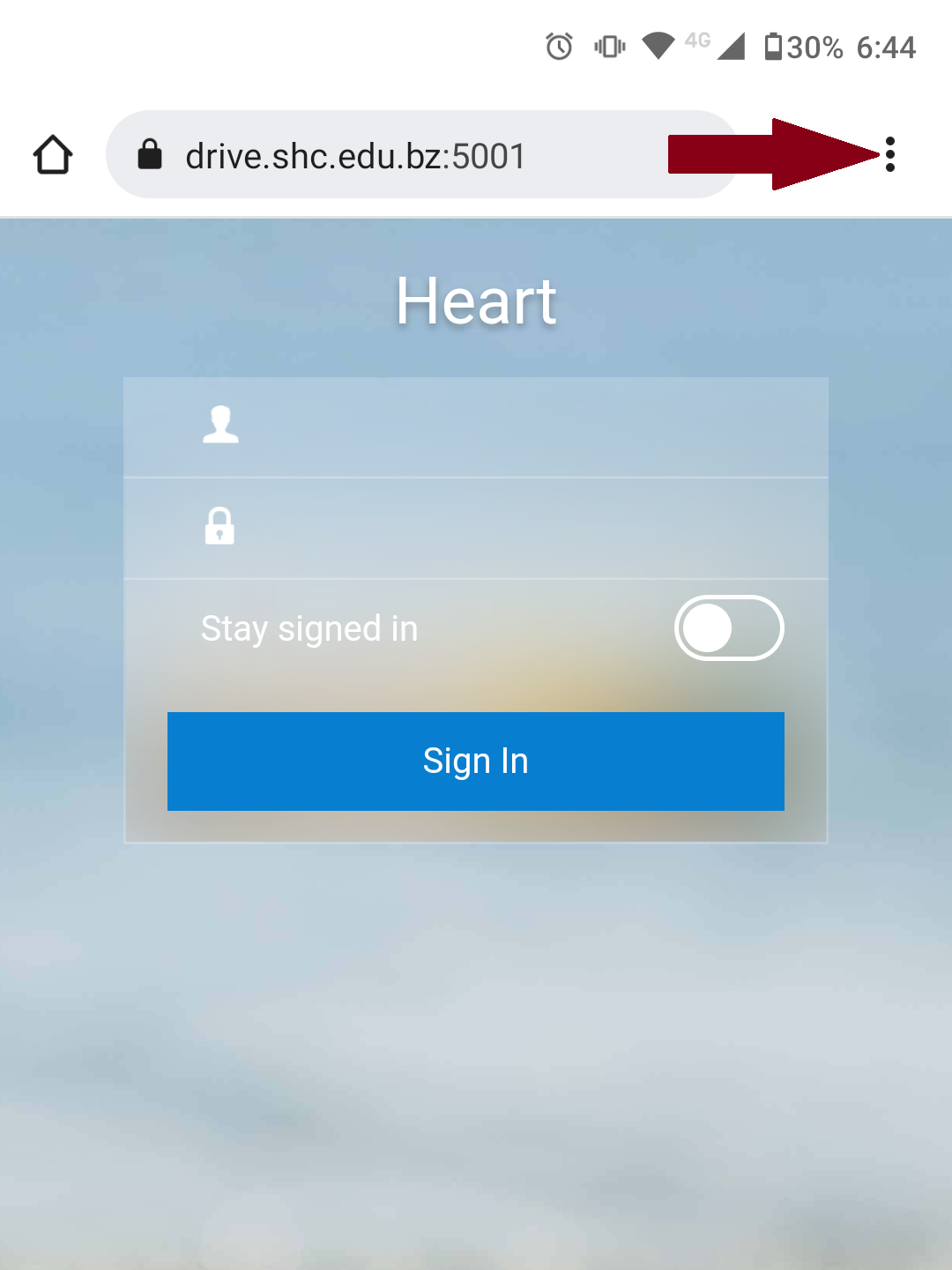
Step 2:
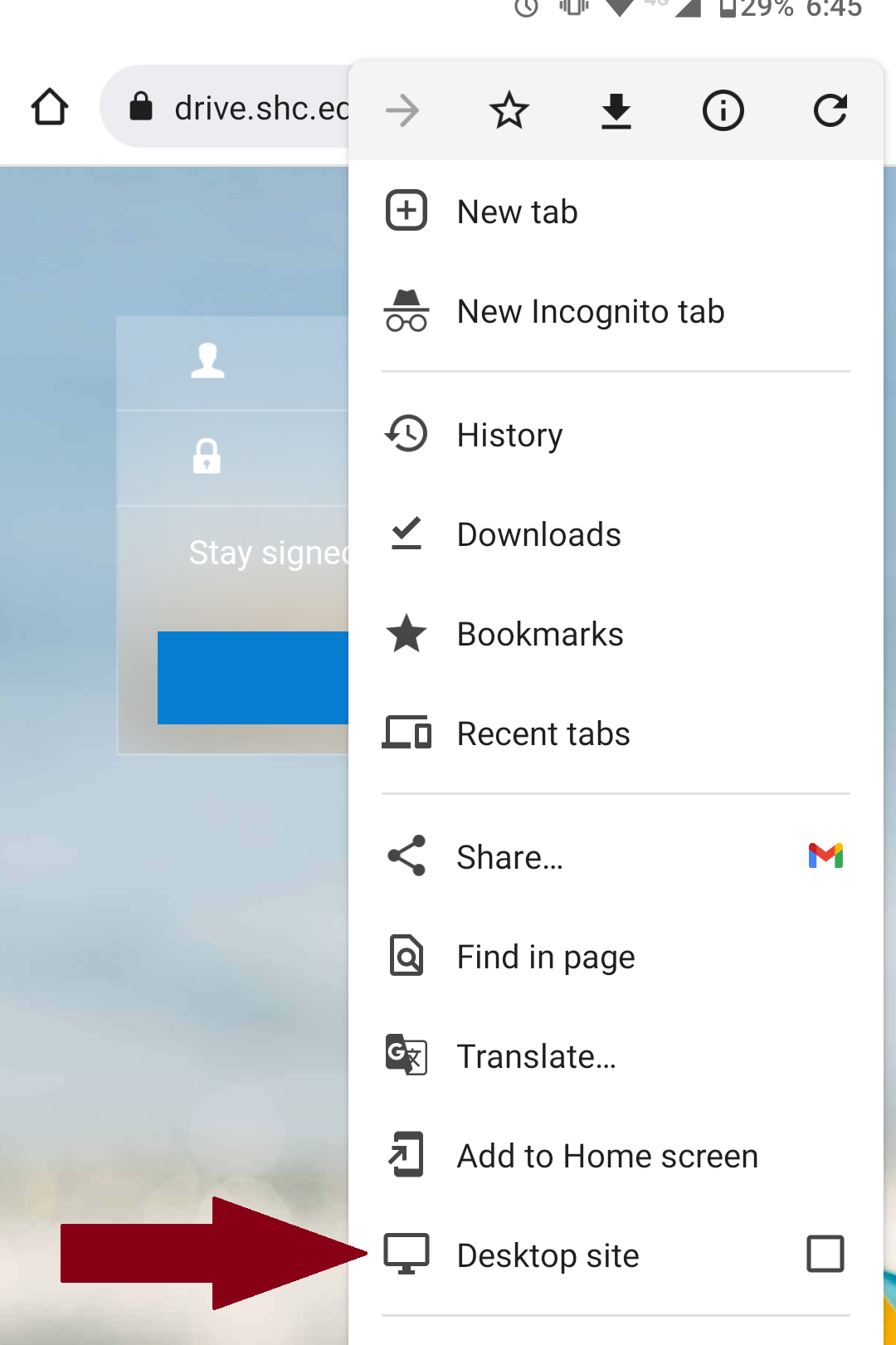
After opening the link above, go to the top right of your screen and click on the menu icon.
Step 3:
On the menu options list, click on Desktop Site.
Step 4:
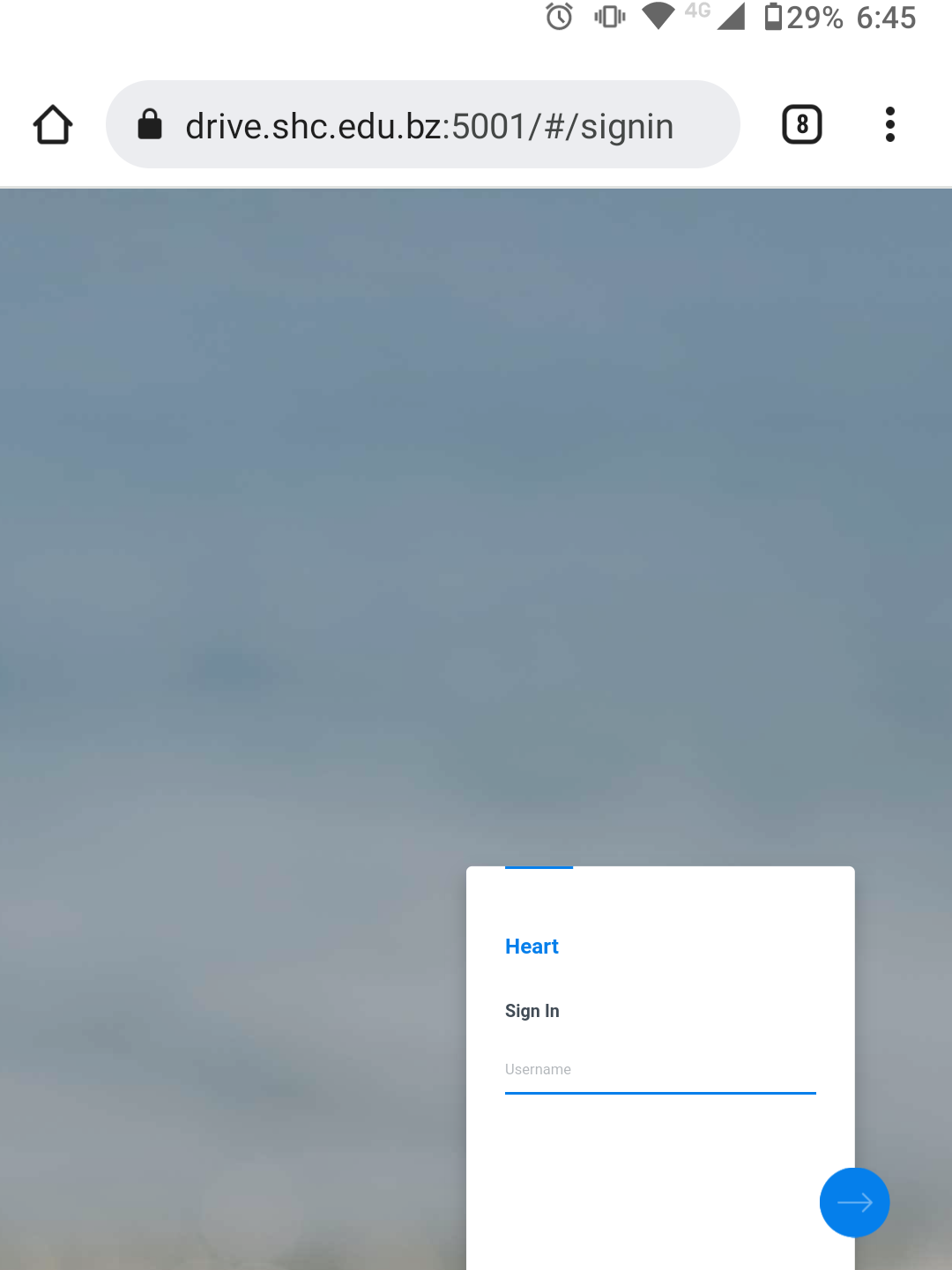
The website will reload, and you will see the desktop view of the website. Now you can change your password.